

♥ Wishlist
Compare 7 Computers & Tablets for Work, Study & Everyday Use products in Canada. Reviews, ratings, pros, cons and buying advice updated for October 2026.


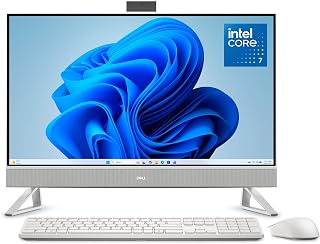


Buying a computer or tablet in Canada in 2026 is less about finding the device with the longest specification sheet and more about matching the hardware to the way you actually work, study, create, communicate and consume content. A smart purchase balances processing performance, battery life, display quality, portability, storage, memory, connectivity, software support and long-term value.
The right choice can be very different for a university student, a remote worker, a family computer, a frequent traveller, a creative professional or someone looking for a simple device for browsing and streaming. A premium laptop may be unnecessary for light everyday tasks, while an inexpensive tablet can become frustrating if you need desktop applications, extensive multitasking or professional peripherals.
This guide is designed for Canadian shoppers comparing computers and tablets, including laptops, 2-in-1 systems, Windows PCs, Chromebooks, Mac computers, Android tablets and iPad models. Rather than treating a single specification as the deciding factor, consider the complete ownership experience and compare the specifications that matter for your intended workload.
The first buying decision is often the form factor rather than the brand. Computers and tablets increasingly overlap, but they are still designed around different usage patterns.
A 2-in-1 laptop combines a conventional computer operating system with a touchscreen and a convertible or detachable design. This can be useful for students, travellers and professionals who want one device for keyboard-based productivity and tablet-style interaction.
However, do not assume that a 2-in-1 is automatically better than buying separate devices. The convertible mechanism, touchscreen and pen compatibility can add complexity or cost, while a conventional clamshell laptop may provide better value if touch functionality is rarely used.
The processor is one of the most important components to compare, but processor branding alone does not tell the whole story. Modern computers can deliver excellent performance at several price levels, and the best CPU depends on workload, thermal design, power efficiency and the rest of the system.
Light users generally do not need a high-end processor. A modern entry-level or mid-range processor can be sufficient for web browsing, office documents, video calls, online banking, streaming and general household tasks.
Instead of spending heavily on CPU performance that may remain unused, consider putting some of the budget toward adequate RAM, a faster SSD, a better display or longer battery life.
Students and professionals who regularly work with multiple browser tabs, spreadsheets, presentations, communication applications and documents should consider a capable mid-range processor paired with sufficient memory.
For these workloads, overall responsiveness matters more than chasing the highest available processor tier. A balanced system is generally preferable to one component being significantly more powerful than everything else.
Creative applications can benefit from substantially more processing power. Video editing, image processing, 3D applications and content creation can also depend heavily on graphics performance, memory capacity and fast storage.
When evaluating a computer for demanding creative workloads, compare the processor and GPU together rather than selecting the device solely by CPU model.
Gaming laptops and desktops require a different approach. Dedicated graphics hardware can have a much greater effect on gaming performance than a small difference between otherwise similar processors.
Gamers should compare GPU capability, graphics memory, cooling design, display refresh rate, resolution, upgrade options and power delivery. A high-refresh display is of limited value if the hardware cannot consistently produce suitable frame rates in the games you intend to play.
RAM affects how comfortably a computer handles multiple active applications. Insufficient memory can become noticeable when you keep many browser tabs open, switch frequently between applications or work with larger files.
One important buying mistake is assuming that RAM can always be upgraded. Many modern thin laptops and tablets use memory that is integrated into the system. If the memory cannot be replaced, select a configuration that provides enough capacity for the expected lifespan of the device.
Solid-state storage has become standard across modern computers and many tablets because it provides fast application loading and responsive file access. Capacity, however, remains an important consideration.
A smaller storage configuration may be adequate for web-first users who rely heavily on cloud services. Someone who stores photographs, videos, games, creative projects or large software installations locally can fill the same capacity surprisingly quickly.
Cloud storage can supplement local storage, but it should not automatically be treated as a complete replacement. Consider internet availability, subscription costs, synchronization requirements and whether important files need an offline copy.
A screen can strongly influence everyday satisfaction because it is the component you look at for hours at a time. Resolution matters, but it should be considered alongside panel technology, brightness, colour characteristics, viewing angles, refresh rate, aspect ratio and screen size.
Smaller screens can make laptops and tablets easier to carry, while larger displays can improve productivity and entertainment. There is no universally best size.
A higher refresh rate can make scrolling and supported animations feel smoother. It can be particularly relevant to gaming and certain creative workflows, but it can also affect power consumption depending on the implementation.
Touch input is valuable for tablets and convertible computers, but buyers should verify exactly what pen technology is supported. Do not assume that every touchscreen supports an active stylus, pressure sensitivity or the same level of palm rejection.
Battery capacity alone does not determine how long a device will operate away from an outlet. Processor efficiency, display brightness, software, wireless connectivity and workload all influence real-world battery endurance.
When comparing devices, look for manufacturer battery claims while remembering that testing conditions can differ between models. A computer used for web browsing at moderate brightness can have very different battery behaviour from one running demanding software.
Thin computers and tablets often have fewer physical ports than older machines. This can improve portability but may create additional accessory requirements.
Before purchasing a thin laptop or tablet, make a list of the peripherals you already own. A device that appears inexpensive can become less economical if you immediately need a dock, hub, adapters, keyboard and other accessories.
Windows remains a versatile choice for users who need broad software compatibility, traditional desktop applications, gaming and extensive peripheral support. The Windows ecosystem also covers a very wide range of hardware configurations and price categories.
macOS is designed around Apple's computer ecosystem and is used across MacBook and Mac desktop systems. It can be a strong fit for users who prefer Apple's interface and already use products such as iPhone and iPad.
ChromeOS is focused on web-based computing and straightforward management. It can be a sensible option for browsing, schoolwork, cloud applications and general productivity when the required software is compatible.
iPadOS provides a tablet-first experience with touch interaction and access to a broad ecosystem of applications. An iPad can be highly portable, although buyers should confirm that their required professional applications and workflows work appropriately before treating it as a laptop replacement.
Android tablets are available from manufacturers including Samsung and Lenovo, with different display sizes, processors, accessories and software features. Buyers should compare the specific model rather than assuming that all Android tablets provide the same experience.
Materials can affect weight, rigidity, thermal behaviour and overall feel, but premium-looking construction does not automatically make one device more durable than another.
Metal construction can provide a rigid, premium-feeling enclosure and is common in higher-end laptops and tablets. It can also contribute to weight depending on the design.
Well-designed plastic computers can offer excellent practicality and lower weight. Plastic should not automatically be interpreted as poor quality. Examine hinge construction, keyboard deck rigidity and overall fit rather than judging only by material.
On 2-in-1 devices, hinge quality deserves particular attention. A convertible computer that will be repeatedly folded, rotated or used with a stylus should have a design appropriate for frequent position changes.
Keyboard comfort is easy to overlook when comparing specification tables, yet it can matter more than small processor differences for people who write extensively.
Consider key travel, layout, backlighting, full-size navigation keys, number-pad requirements and overall spacing. Buyers who regularly work with spreadsheets may prefer a dedicated numeric keypad, while frequent travellers may value a compact keyboard and smaller chassis.
Trackpad size and responsiveness also matter. If you plan to use the device without an external mouse, pay particular attention to gesture support, precision and surface area.
Video meetings have made cameras and microphones more important than they once were. A device intended for remote work should be evaluated as a complete communication tool.
Many everyday computers use integrated graphics that share system resources. This can be perfectly adequate for office work, browsing, streaming and casual applications.
Dedicated graphics processors are more relevant when gaming, 3D rendering, advanced video editing or other GPU-intensive applications are involved. They can provide substantially greater graphics capability, but they may increase cost, power consumption and system weight.
For buyers who do not use demanding graphics applications, paying extra for a dedicated GPU can be poor value. Conversely, someone purchasing a computer specifically for gaming or professional creative work should avoid treating integrated graphics as an equivalent substitute without checking application requirements.
Brands such as ASUS, Acer, Lenovo, HP, Dell and MSI offer gaming-oriented computers across multiple categories. The exact configuration matters more than the logo on the lid, so compare processor, GPU, memory, storage, display and cooling specifications on each model.
A student computer needs to balance portability, reliability and productivity rather than maximising raw performance.
For many students, a balanced mid-range laptop can be more practical than an expensive performance model. The exception is a course that requires specialised engineering, architecture, design, programming or media-production applications.
A tablet can be particularly useful for reading digital textbooks, annotating documents, taking handwritten notes and carrying a lightweight device around campus.
If note-taking is a priority, verify stylus compatibility before purchasing. Also check whether the keyboard accessory is included or sold separately, because the complete setup can cost considerably more than the tablet itself.
Remote workers should evaluate productivity features beyond processor speed. A comfortable keyboard, clear display, reliable wireless connectivity, webcam, microphone and multiple-display support can have a meaningful impact on daily use.
If the computer will remain at a desk most of the time, consider whether a desktop paired with a quality monitor would provide better ergonomics and value than paying for an ultra-portable laptop that rarely leaves the office.
Professionals who work with spreadsheets, coding environments, research documents or content management systems may benefit from a larger external display. Check the computer's supported display outputs and the maximum resolution and refresh rate available through the relevant port.
Content creation can include photography, video editing, graphic design, music production, animation and other workloads with very different hardware requirements.
Professionals should check the hardware recommendations published by the software developers for the applications they actually use. Those requirements are generally more useful than a generic "best laptop for creators" label.
Brand reputation can be useful as a starting point, but it should never replace model-level comparison. A manufacturer can produce excellent devices across several categories while offering other models aimed at different budgets and workloads.
Two laptops can have similar prices and processor names while delivering noticeably different experiences. When comparing shortlisted models, work through the complete specification set.
Tablet shopping can be deceptively simple because many models appear similar from a distance. A proper comparison should include the processor generation, RAM, storage, display technology, operating system, software support, wireless connectivity and accessory ecosystem.
Also check whether cellular connectivity is available if mobile internet access is important. A Wi-Fi-only tablet and a cellular-capable tablet can serve very different travel requirements.
Tablet buyers sometimes focus heavily on screen quality while overlooking storage capacity. This can become a problem when downloading films, games, photographs, documents and offline content.
Expandable storage can change the calculation on compatible Android tablets, but not every model includes a memory-card slot. Never assume that a tablet supports expandable storage simply because another model from the same manufacturer does.
For home use, Wi-Fi may be sufficient. Travellers, field workers and users who frequently operate away from reliable Wi-Fi may prefer a cellular-capable model.
Before choosing cellular connectivity, consider the ongoing mobile service requirements and whether your existing mobile plan can support the device. Also verify the supported cellular technology and SIM or eSIM configuration for the specific model.
The advertised price of a tablet or laptop does not always represent the cost of the complete setup you want.
When comparing deals in Canada, calculate the cost of the configuration you will actually use rather than comparing the base device prices alone.
A discount is only useful when the underlying product meets your requirements. A lower price on an outdated configuration may be less attractive than a modest discount on a newer model with better long-term specifications.
Retail listings can use similar product names for multiple configurations. Verify the precise model number and compare the processor, RAM, storage, display and connectivity details before deciding that two listings are equivalent.
A laptop family may include configurations with different CPUs, RAM, storage, screens and graphics hardware. The name printed on the product page is not enough to establish that two configurations provide the same performance.
Include essential accessories in your comparison. A tablet that requires a keyboard and stylus for your intended workflow should be evaluated as a complete productivity setup.
Prices and promotions can change frequently. Before buying, compare today's price across reputable Canadian retailers and check whether the listed configuration is actually the one you want.
A previous-generation computer or tablet can sometimes provide excellent value when its performance and software support remain appropriate for your needs. However, buyers should understand exactly what condition and support terms apply.
Refurbished products can vary considerably depending on who performed the refurbishment and what testing or replacement process was used. Review the condition description, included accessories, return policy and applicable warranty terms before purchasing.
Open-box devices may have been returned or previously handled. Their condition can range from nearly unused to showing visible signs of handling, so carefully review the seller's description and applicable return conditions.
An older premium device can sometimes outperform a newer budget model in areas such as build quality, display or connectivity. However, software support, battery condition, processor generation and repairability should be considered before choosing older hardware.
Battery condition deserves special attention when purchasing a previously owned portable device. Battery capacity naturally changes with use, and replacement options differ between models.
Check whether the seller provides battery-health information and whether the device has a replaceable battery. For older laptops and tablets, battery replacement availability can influence the practical lifespan of the device.
A smart purchase should consider what happens after the initial buying decision. Some computers provide accessible components or replacement options, while others integrate major components into the main board.
Before purchasing, investigate whether RAM, SSD storage, battery and other commonly serviced components can be replaced. Also check whether manufacturer service documentation and replacement parts are available for the specific model.
Hardware performance is only part of long-term value. Operating-system updates, security support and application compatibility can determine how useful a device remains several years after purchase.
For tablets in particular, examine the manufacturer's stated software-support approach where available. For computers, check whether the selected operating system and hardware meet the requirements for the software you expect to use in the future.
Security should be part of the buying decision for both personal and work devices.
Built-in cameras, microphones, location services and cloud synchronization can make modern devices highly capable but also create privacy considerations. Review operating-system privacy controls and application permissions after setup.
Business users should also consider organisational requirements for encryption, device management, remote administration and data protection before selecting consumer hardware for professional use.
High-end processors can be excellent, but paying for performance you never use can reduce the value of the complete system. Match processor capability to your actual applications.
Memory shortages can become frustrating as applications and browser workloads grow. If the memory is soldered or otherwise non-upgradable, plan for the entire expected ownership period.
Storage fills faster than many buyers expect. Check your existing storage usage before choosing a smaller configuration.
A computer can have strong internal hardware but still be unpleasant to use if the screen does not meet your requirements for size, brightness, resolution or colour.
Count the accessories you use today before buying a device with a minimal port selection.
USB-C describes a connector shape rather than one universal feature set. Data speeds, charging capabilities, display output and other functions can vary between devices and individual ports.
Ratings can help identify common experiences, but they should be considered alongside technical specifications, the exact configuration, software requirements and the date of the reviews. A highly rated base configuration may not be identical to the configuration currently being considered.
A laptop that looks portable on paper can feel less convenient when its charger is large or the complete travel setup is heavy. Consider the device and essential accessories together.
Customer reviews can provide useful information about practical issues that are difficult to identify from specifications alone. However, not every review is equally informative.
When several products appear suitable, create a simple comparison based on the factors that matter most to you. A useful scoring framework can include:
Give greater importance to categories that directly affect your daily workflow. For example, a graphic designer may prioritise display and GPU performance, while a traveller may prioritise weight and battery life.
There is no single correct budget because computing requirements vary dramatically. Instead of beginning with a fixed price, begin with the minimum capabilities you need and then identify where additional spending provides meaningful benefits.
For basic browsing and communication, a lower-cost device may be sufficient. Students and office users often benefit from moving into a balanced mid-range configuration. Creative professionals, gamers and technical users may need substantially more capable hardware.
When evaluating a more expensive device, ask what you are actually gaining. A better display, additional memory, larger SSD, stronger GPU, lighter construction or longer useful lifespan may justify the additional expense. A specification increase that has no effect on your workload may not.
A strong deal is not necessarily the product with the largest percentage discount. A better approach is to compare the current configuration against alternatives that offer similar hardware.
This approach helps prevent an apparently attractive promotion from influencing the purchase more than the actual capabilities of the device.
Online shopping makes it easier to compare many computers and tablets, but it also makes configuration errors easier to miss. Before placing an order through a retailer, carefully inspect the full technical specification.
A desktop computer can provide advantages when portability is irrelevant. Larger chassis designs can offer more room for cooling, expansion and full-size components. They can also make it easier to connect multiple monitors and peripherals.
A laptop, however, combines the computer, display, keyboard, trackpad and battery in one package. For students, hybrid workers and households that share workspaces, that convenience can outweigh the potential advantages of a desktop.
Rather than asking which operating system is universally better, consider software compatibility and ecosystem preference.
The iPad and Android tablet ecosystems both offer capable options, but the best choice depends heavily on applications, accessories and existing devices.
iPad buyers should compare the specific iPad generation, storage capacity, screen technology, processor and compatible Apple Pencil or keyboard accessories. Android tablet buyers should compare the exact Samsung, Lenovo or other model, including its software version, storage expansion options and accessory compatibility.
A Chromebook can be an excellent fit for users whose computing needs are primarily browser-based. It can also be attractive for straightforward school and home workloads.
However, buyers should confirm application compatibility before choosing ChromeOS. If you depend on specialised Windows or macOS software, a Chromebook may not provide an equivalent experience.
Prioritise reliability, ease of use, adequate memory, SSD storage, a comfortable screen and sensible pricing. Expensive gaming hardware is usually unnecessary for browsing, email, streaming and household administration.
Prioritise portability, battery life, keyboard quality, webcam capability, software compatibility and enough storage for coursework.
Prioritise multitasking performance, display quality, keyboard comfort, connectivity, video conferencing and compatibility with workplace applications.
Prioritise the GPU, cooling, display refresh rate, processor capability, RAM and storage. Consider the portability trade-off associated with gaming hardware.
Prioritise display quality, processor and GPU performance, RAM, SSD capacity, colour requirements and application compatibility.
Prioritise weight, dimensions, battery efficiency, charger size, durability and connectivity. A compact device that is pleasant to carry can be more valuable than substantially greater performance that rarely gets used.
The best option depends on your workload, operating-system preference, budget and portability requirements. There is no single computer or tablet that is ideal for every Canadian buyer.
No. Higher-priced computers generally offer stronger or more specialised hardware, premium construction or additional features, but those advantages are only valuable when they match your requirements. A well-balanced mid-range computer can be a better purchase for everyday users.
More RAM can improve multitasking and support demanding applications, but there is a point where additional memory provides little practical benefit for a particular workload. Choose enough for your applications and expected ownership period.
It can be. Buyers who store games, videos, photographs and large projects locally may benefit substantially from additional storage. Users who primarily work online may have less need for a very large internal drive.
A touchscreen is useful when you regularly interact directly with the display, use a stylus or want tablet-style functionality. If you primarily type and use a trackpad or mouse, a conventional display may provide better value.
They can be. A 2-in-1 can combine conventional keyboard productivity with touchscreen interaction, note-taking and tablet-style use. Check weight, hinge design, pen support, battery life and keyboard comfort before choosing one.
Sometimes, but not universally. A tablet can replace a laptop for browsing, communication, media consumption, note-taking and some productivity workloads. Users who require specialised desktop applications, extensive multitasking or advanced peripheral support may still prefer a conventional computer.
Start with software compatibility and workflow requirements. Compare the applications you use, existing devices, peripheral requirements and operating-system preferences before comparing individual hardware specifications.
For web browsing, email, documents, streaming and many cloud-based workflows, a Chromebook can be suitable. Confirm application compatibility if you require specialist desktop software.
Battery life becomes especially important for students, commuters and travellers. If a computer will mostly remain on a desk, display quality, performance and connectivity may deserve more attention.
There is no universal answer. For multitasking, additional memory can be more useful than a modest CPU upgrade. For demanding compute-heavy applications, processor performance may matter more. Compare the requirements of your actual software.
Not necessarily. Integrated graphics are sufficient for many everyday workloads. Dedicated graphics become more relevant for modern gaming, 3D work, demanding video production and certain professional applications.
It can make sense if the older model still meets your performance, software-support and connectivity requirements. Compare it directly with current alternatives rather than assuming an older flagship is automatically better value.
There is no fixed replacement schedule. Replace a device when its performance, battery condition, software compatibility, storage capacity, reliability or repair costs no longer meet your needs. A well-matched computer can remain useful for years, while a poorly matched device can become limiting much sooner.
Compare the exact configuration across reputable Canadian retailers, check current pricing, evaluate previous-generation alternatives and consider the total cost of necessary accessories. Avoid judging a deal solely by the advertised discount percentage.
The smartest way to compare computers and tablets in Canada is to begin with your workload and work backwards toward the specifications. Decide whether you need a laptop, desktop, tablet, Chromebook or 2-in-1. Then establish the operating system, processor class, RAM, storage, display, graphics capability, connectivity and portability requirements that fit your routine.
Once you have a shortlist, compare exact model numbers rather than product families. Check the complete configuration, read relevant customer feedback, review manufacturer documentation, compare current Canadian prices and account for accessories that are necessary for your intended setup.
For everyday users, balance usually matters more than maximum specifications. For demanding users, identify the component that actually limits your workload and spend accordingly. For tablet buyers, pay particular attention to storage, software capabilities and accessory costs. For laptop buyers, do not overlook the keyboard, display, battery, ports and weight simply because processor specifications are easier to compare.
The best smart buy is ultimately the device that provides the right combination of performance, usability, reliability, portability and long-term suitability at a price that makes sense for your needs. Use the comparison criteria above to narrow the field, verify the exact configuration before purchase and check today's Canadian pricing before making a final decision.