

♥ Wishlist
Compare 13 Computers for Home, Work & Everyday Use products in Canada. Reviews, ratings, pros, cons and buying advice updated for October 2026.

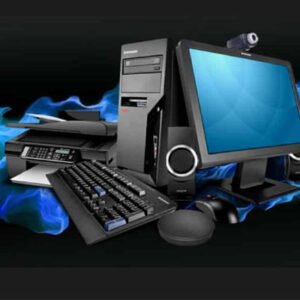
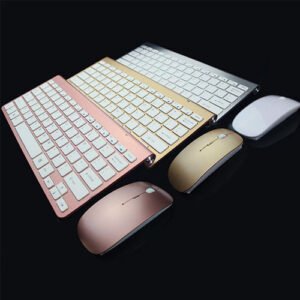
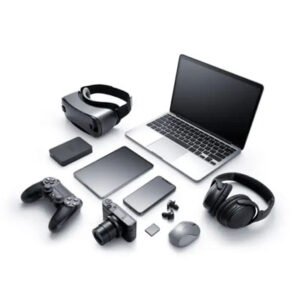



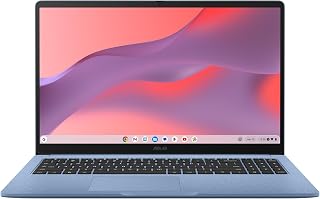


Choosing a computer in 2026 is less about finding the machine with the longest specification sheet and more about matching the hardware to the way you actually work, study, create, play, or browse. A smart purchase balances processor performance, memory, storage, graphics capability, display quality, connectivity, portability, upgrade options, software compatibility, and overall value.
For Canadian shoppers, the best computer deal is not necessarily the cheapest advertised model. A lower-priced configuration can become poor value if it has insufficient RAM, limited storage, an outdated processor platform, a weak display, or few useful ports. Conversely, paying more for specifications that will never be used can make a computer unnecessarily expensive.
This buying guide focuses on the factors that matter when comparing computers and computer deals in Canada during 2026. Specifications, configurations, retailer pricing, promotions, and availability can change, so shoppers should verify the exact model number and current configuration before purchasing.
A smart-buy computer should provide enough performance for its intended workload without forcing you to pay for hardware that offers little practical benefit. The right balance depends heavily on whether the computer will be used for everyday productivity, education, professional applications, programming, photo and video work, gaming, or demanding technical workloads.
Before comparing individual models, determine which type of computer fits your needs. A desktop, laptop, 2-in-1, mini PC, workstation, or gaming system can provide very different advantages even when their prices appear similar.
Laptops are a practical choice for students, remote workers, professionals, travellers, and households that need a computer in multiple locations. When comparing laptops, look beyond processor branding and consider weight, battery capacity, charging options, keyboard quality, display characteristics, webcam quality, port selection, wireless connectivity, and upgrade limitations.
Popular computer manufacturers such as Lenovo, Dell, HP, ASUS, Acer, Microsoft, Apple, and MSI offer machines across multiple price and performance categories. However, the brand alone should not determine the purchase. The exact configuration and model generation are more important than a familiar logo.
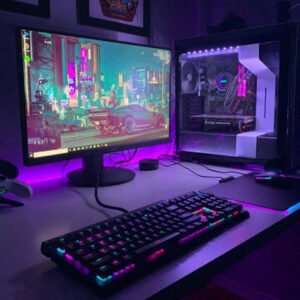
Desktop computers remain attractive when portability is not important. They can provide better sustained performance, larger displays, more ports, and greater flexibility than many similarly priced laptops. Desktop systems are particularly useful for home offices, gaming setups, content creation, programming, and users who want to retain a computer for several years.
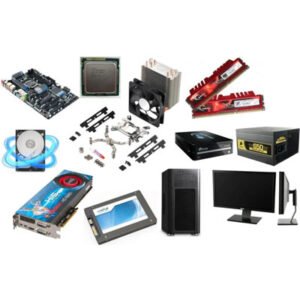
One of the most important desktop-buying questions is whether the system uses standard components that can be replaced or upgraded. A computer with accessible RAM, storage, graphics, and other components can offer more flexibility than a highly proprietary design.
Mini PCs can be an excellent smart-buy category for compact workspaces. They are particularly suitable for web browsing, office productivity, media consumption, lightweight development, point-of-sale environments, and other tasks that do not require a large dedicated graphics card.
The compact design can impose limitations on cooling, expansion, and internal upgrade options. Check the number of memory and storage slots, supported storage interfaces, external display capabilities, USB connectivity, networking, and included power supply before buying.
Convertible laptops and detachable computers combine traditional PC functionality with tablet-style operation. They can be useful for note-taking, presentations, travel, creative work, and users who value touch input.
The compromise is that some thin convertible designs prioritize portability over upgradeability, sustained performance, port selection, or repairability. Consider those trade-offs rather than paying extra simply for the convertible form factor.
Gaming computers require a different buying strategy because graphics performance is often the dominant consideration. A strong CPU paired with inadequate graphics hardware is not necessarily a good gaming configuration.
Compare the graphics processor, graphics memory where relevant, display refresh rate, CPU, system RAM, SSD capacity, cooling system, power supply in desktops, and upgrade options. Gaming laptops also require attention to chassis cooling and power limits because two computers using similarly named components can deliver different sustained performance.
The processor is one of the most visible specifications in a computer listing, but comparing CPUs solely by model name can be misleading. Processor generations, core and thread configuration, power limits, integrated graphics, platform features, and cooling all influence practical performance.
Intel and AMD provide processors across entry-level, mainstream, enthusiast, and professional segments, while Apple designs its own silicon for Macs. Qualcomm and other manufacturers also participate in the broader PC processor market, particularly in systems emphasizing power efficiency and connected experiences.
RAM is one of the easiest specifications to overlook when comparing deals. A computer can have an attractive processor and SSD yet feel restrictive if its memory capacity is too low for the user's workload.
For general computing, a sensible modern configuration should provide enough memory for the operating system, browser tabs, productivity software, communications, and background applications without constant memory pressure. Users who work with large datasets, virtual machines, demanding creative applications, professional software, or complex multitasking should consider higher-capacity configurations.
Also check whether RAM is soldered to the motherboard. If it cannot be upgraded, choosing an appropriate capacity at purchase becomes more important.
Solid-state storage has become a fundamental component of modern computers because it provides fast access to applications and files without the mechanical components used in traditional hard drives.
Storage capacity should be considered alongside the type of work performed. An office user may require considerably less space than someone maintaining a large photo library, video collection, game library, development environment, or professional media archive.
Do not judge SSD quality solely from a listing that says “SSD.” Interface, controller design, capacity, sustained performance, thermal behaviour, and upgradeability can differ substantially between systems.
Graphics hardware should match the applications you intend to run. Integrated graphics share system resources and are often sufficient for everyday computing, productivity, streaming, and many lightweight graphical tasks.
Dedicated GPUs have their own graphics memory and are designed for substantially more demanding workloads. NVIDIA, AMD, and Intel all have products serving different parts of the graphics market.
For gaming and creative applications, do not stop at the GPU's model name. Examine the complete configuration, including available graphics memory, system RAM, CPU, display resolution, cooling, power delivery, and the specific software or games you intend to use.
The display is the component you look at for hours, yet it is frequently overshadowed by processor and memory specifications. A computer with excellent internal hardware can still be uncomfortable to use if its screen is poorly suited to your environment.
Higher resolution can provide a sharper image and more usable workspace, but it can also increase power consumption and graphics requirements. Screen size and viewing distance should be considered together with resolution.
A higher refresh rate can make scrolling, animation, and supported games appear smoother. It is particularly relevant to gaming and users who are sensitive to motion clarity. For conventional office work, it may be less important than panel quality, brightness, ergonomics, and resolution.
IPS, OLED, and other display technologies have different strengths. Colour reproduction, contrast, black levels, viewing angles, response behaviour, brightness, and power consumption can vary considerably between individual panels, so the exact specification should be checked rather than assuming that every screen using the same panel category is equivalent.
Photographers, designers, video editors, and other colour-sensitive users should pay attention to colour gamut, colour accuracy, calibration information, and application requirements. A high-resolution display is not automatically a professional-quality colour display.
Port selection can determine whether a computer remains convenient after purchase. A thin laptop with only a few ports may require docks or adapters, while a desktop or workstation may provide considerably more expansion options.
USB-C should never be treated as a guarantee of identical functionality. The same connector can support different combinations of data transfer, charging, video output, and other capabilities depending on the computer.
Manufacturer battery-life figures can be useful for comparing computers from the same testing methodology, but actual endurance varies according to display brightness, workload, wireless activity, applications, power settings, temperature, and battery condition.
If portability matters, consider battery capacity, charger size, charging technology, power efficiency, and whether the computer can be conveniently charged through a compatible USB-C connection. A lightweight charger can make a meaningful difference for students and professionals who carry their computer every day.
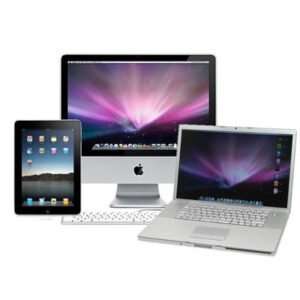
Operating system choice should be based on software requirements rather than preference alone. Windows computers provide broad hardware and software compatibility, Macs integrate closely with Apple's ecosystem, and ChromeOS devices can be attractive for browser-centric workflows and supported applications.
Before purchasing, identify any essential applications and confirm that they run correctly on the chosen operating system and processor architecture. This is especially important for specialized professional software, older applications, enterprise tools, device drivers, and peripherals.
There is no universally superior platform. Windows and macOS computers serve different user priorities and application ecosystems.
A processor label does not describe the entire computer. RAM, storage, cooling, power limits, graphics, display, and platform design can have a major effect on the final experience.
A low-memory configuration can appear inexpensive but may become limiting sooner than a slightly better-equipped model. Consider your expected usage over several years rather than today's minimum requirements alone.
If a laptop has soldered memory and a non-replaceable storage configuration, the initial purchase specification becomes especially important.
Not everyone needs a workstation-class CPU or dedicated GPU. Spending more on unused performance can reduce the value of the rest of the system.
Students and professionals may spend more time looking at the screen than using any other component. Resolution, brightness, panel technology, ergonomics, and size should be part of the buying decision.
Manufacturers frequently sell multiple configurations under a similar family name. Verify the processor, RAM, SSD, GPU, display, operating system, and exact model identifier before assuming two listings are equivalent.
A large percentage discount does not automatically make a computer a good deal. Compare the final price against the specifications, current-generation hardware, intended workload, upgrade options, and alternatives available at the same budget.
When evaluating a computer deal, create a simple specification checklist and compare competing systems on equivalent terms. This prevents an attractive headline price from distracting you from missing features.
Students generally benefit from a balanced laptop rather than an excessively powerful system. Prioritize comfortable portability, dependable battery performance, sufficient RAM, an SSD, a good keyboard, a usable webcam, and enough connectivity for classroom and home use.
Office users should prioritize responsiveness, comfortable displays, reliable connectivity, adequate memory, storage capacity, and ergonomic accessories. A moderate processor paired with sufficient RAM and fast storage can be a better purchase than an expensive CPU combined with compromises elsewhere.
Remote work places additional importance on webcam quality, microphones, speakers, wireless connectivity, external monitor support, docking options, and a comfortable keyboard. If the computer is moved frequently, weight and charger size also become important.
Developers should consider CPU performance, RAM capacity, SSD speed and capacity, keyboard quality, display resolution, external-monitor support, operating-system compatibility, and virtualization requirements. Developers running containers, emulators, local databases, virtual machines, or large codebases may benefit from substantially more memory than a basic office user.
Photo workflows benefit from a capable CPU, sufficient RAM, fast storage, and a display with appropriate colour characteristics. External monitor support and storage expansion may also matter when working with large libraries.
Video editing can place simultaneous demands on CPU, GPU, RAM, storage, and cooling. Consider codec support and hardware acceleration for the applications you use, along with sufficient fast storage for active project files.
Gaming buyers should place particular emphasis on GPU performance, graphics memory, CPU balance, cooling, display refresh rate, and upgradeability. A high-refresh display is most useful when the hardware can produce suitable frame rates in the games being played.
A family computer should be selected for a range of everyday tasks rather than one narrow workload. Reliability, storage capacity, ease of maintenance, display quality, connectivity, and straightforward usability can be more valuable than extreme performance.
Business buyers should evaluate more than consumer-facing specifications. Depending on the organization, important factors can include security features, device management, docking support, serviceability, hardware compatibility, operating-system requirements, warranty terms offered by the manufacturer or retailer, and lifecycle considerations.
Lenovo ThinkPad, Dell business systems, HP business PCs, Microsoft Surface devices, Apple Macs, and other professional-oriented product families can occupy different positions in the market. Compare the exact configuration and business requirements rather than selecting a product family solely because it is marketed toward professionals.
A desktop can provide excellent value when portability is unnecessary. More physical space generally allows manufacturers and system builders to accommodate larger cooling solutions, additional storage, expansion cards, and replaceable components.
A laptop includes a display, keyboard, battery, trackpad, speakers, webcam, and portable chassis in the same product. That convenience can justify a higher price even when a desktop offers more raw performance for the money.
The right decision therefore depends on the value you place on portability. If the computer will remain on one desk, compare desktops seriously. If it needs to travel between home, school, office, and other locations, a laptop's integrated design can be worth the premium.
Build quality is not determined by whether a computer feels heavy. Look at the materials used, hinge construction, keyboard deck rigidity, trackpad design, port placement, chassis flex, ventilation arrangement, and overall physical design.
For laptops, also consider whether the keyboard is comfortable for extended typing and whether the display hinge provides the viewing flexibility you need. A computer used for several hours every day should be evaluated as a complete ergonomic tool rather than a collection of specifications.
Peak processor or graphics performance is only one part of the equation. During sustained workloads, heat can influence power consumption and performance behaviour. Compact computers and thin laptops may use different thermal strategies from larger desktops.
Users who regularly compile software, render video, process large datasets, perform 3D work, or play demanding games should pay particular attention to cooling design. For these workloads, sustained performance can matter more than a short benchmark burst.
Storage requirements tend to increase over time. Games, photographs, video files, application packages, operating-system files, and project archives can consume available space quickly.
A computer with an additional storage slot can offer a useful upgrade path. If internal expansion is unavailable, external SSDs can provide additional capacity, although their performance and convenience depend on the computer's available interfaces.
Security should be considered when choosing a computer for personal information, financial activity, professional documents, or business data. Depending on the platform, useful features can include hardware-backed security technologies, biometric authentication, secure boot capabilities, device encryption support, firmware security, and regular operating-system updates.
Security capabilities vary by model and configuration, so verify the manufacturer's specifications rather than assuming that every computer in a product family provides identical features.
Repairability can affect the practical lifespan of a computer. Replaceable storage, accessible memory, standard connectors, and serviceable batteries can provide more options when individual components eventually need attention.
Thin and highly integrated systems can reduce upgrade possibilities in exchange for compactness and portability. Neither approach is automatically better; the important question is whether the design fits your expected ownership period and usage pattern.
Start with the workload rather than the maximum amount you are willing to spend. Divide your budget among the components that have the greatest effect on your specific tasks.
Retail listings often present specifications in different formats. One manufacturer may emphasize processor branding while another highlights memory or display features. Build your own comparison rather than relying on the first specification shown.
For example, “16GB memory” does not tell you whether that memory is upgradeable, while “1TB SSD” does not necessarily tell you the exact storage technology or whether another drive can be installed. Likewise, a processor's family name does not reveal the complete power configuration of the computer.
The exact model identifier is therefore one of the most useful pieces of information when comparing seemingly similar deals.
Established manufacturers can offer extensive product ranges, but their product families are not interchangeable. Dell, HP, Lenovo, Acer, ASUS, MSI, Apple, Microsoft, Intel, and other manufacturers may target very different segments.
Brand reputation can be a useful starting point, but the exact model, configuration, current price, intended workload, and support terms should determine the final decision.
Paying more can be sensible when the additional hardware addresses a genuine limitation. Examples include upgrading memory for demanding multitasking, increasing SSD capacity for large files, selecting a better display for creative work, choosing a stronger GPU for gaming, or moving to a more upgradeable desktop platform.
Paying more is less compelling when the upgrade only increases a specification that has little impact on your workload. The objective is not to buy the most powerful computer possible; it is to buy the configuration that provides the right combination of performance, convenience, longevity, and value.
A less expensive model can be the better purchase when it already satisfies your requirements. For web browsing, documents, video calls, streaming, email, and ordinary productivity, an appropriately configured mainstream computer can provide everything necessary without the cost of enthusiast hardware.
The key is to distinguish a genuinely lower-cost but capable computer from a heavily compromised configuration. Cutting unnecessary performance is sensible; buying insufficient RAM, storage, display quality, or connectivity simply to reach the lowest price can create frustration later.
Use this checklist when narrowing down the top computer deals available in Canada:
Customer ratings can help identify recurring issues, but a rating should not be treated as a complete technical evaluation. Look for patterns in comments concerning keyboard quality, battery behaviour, display characteristics, fan noise, connectivity, build quality, software issues, thermals, and reliability.
Also distinguish feedback about the exact configuration from feedback about an entire product family. Two computers with similar names can contain different processors, screens, memory configurations, or storage devices.
Independent reviews are particularly useful for details that specifications do not fully reveal, such as sustained performance, display behaviour, acoustic characteristics, upgrade accessibility, and practical ergonomics. These observations should complement, rather than replace, verification of the manufacturer's specification.
Computer pricing can change frequently, especially around seasonal promotions, back-to-school periods, major shopping events, product refreshes, and inventory changes. A promotion should be evaluated against the computer's specifications and current alternatives rather than against an original list price alone.
When comparing offers, check whether the deal applies to the exact RAM, storage, display, processor, and graphics configuration you want. Some listings use a product-family image or name while the available configuration differs from other versions sold under the same family.
Before placing an order through a retailer, verify the final product details one more time. Computer configurations can change, and a product page may contain multiple variants.
There is no single best computer for every Canadian shopper. The right choice depends on budget, portability, operating system, software requirements, performance needs, display preferences, storage requirements, and upgradeability. A balanced mainstream computer may be the smartest choice for everyday users, while a gaming PC, workstation, Mac, or business laptop may be better for specialized workloads.
There is no universal price point that guarantees good value. Establish the workload and minimum specifications first, then compare current Canadian prices among computers that meet those requirements. This approach is more reliable than choosing a budget based solely on a particular price category.
For many mainstream workloads, 16GB can provide a useful balance of capacity and value. Users working with large datasets, virtual machines, professional creative applications, complex development environments, or other memory-intensive workloads may benefit from more. Always check the requirements of your actual software.
Yes. SSD storage contributes significantly to everyday system responsiveness, including operating-system startup, application launches, file access, and general system interaction. Capacity and upgradeability should also be considered.
Not necessarily. Integrated graphics can be sufficient for many productivity, education, browsing, and media tasks. Dedicated graphics become more relevant for demanding gaming, 3D workloads, professional creative applications, and other GPU-intensive tasks.
Choose a laptop when portability and an integrated computer setup are important. Choose a desktop when you primarily work in one location and want greater expansion, component flexibility, or strong sustained performance.
They can be, but they are not automatically the best value for ordinary office tasks. Gaming systems may provide powerful hardware, but they can also be heavier, louder, larger, or more expensive than necessary for basic productivity.
No. Processor performance should be evaluated in relation to the applications you use. A higher-end CPU can be valuable for demanding workloads, but a balanced system with adequate memory, storage, graphics, cooling, and display quality may provide better overall value.
Both matter, but the priority depends on the workload. Insufficient RAM can restrict multitasking and demanding applications, while insufficient storage creates constant space-management problems. Choose enough of each rather than treating them as direct substitutes.
Compare the exact processor, RAM, SSD, GPU, display, operating system, ports, and upgradeability. Similar product names do not guarantee identical hardware.
Brand reputation can provide useful context, but the exact model and configuration are more important. A manufacturer may produce excellent premium systems and basic entry-level models with very different designs and capabilities.
Newer hardware can provide updated performance, efficiency, connectivity, and platform features, but an older model can still be a smart buy if its capabilities meet your needs and its price represents good value. Compare actual specifications and current pricing rather than relying on generation labels alone.
There is no fixed replacement schedule. A computer should generally be replaced when it no longer meets your performance, software, storage, security, reliability, or usability requirements. Upgradeable systems can sometimes remain useful longer because individual components can be improved.
The smartest way to shop for a computer in Canada is to begin with the work you need the machine to perform and then work backward toward the specifications. Processor speed, RAM, SSD capacity, graphics, display quality, connectivity, battery characteristics, cooling, and upgradeability should be evaluated as parts of one system.
Do not let a large discount, a familiar brand, or a premium-sounding processor name make the decision for you. Compare the exact configuration, check independent and verified customer feedback, examine the specifications carefully, and compare competing computers at the same effective price.
For everyday users, balanced specifications are usually more valuable than extreme performance. For gamers and creators, graphics capability and sustained performance may deserve greater priority. For professionals and students, portability, ergonomics, battery behaviour, connectivity, and software compatibility can be just as important as raw computing power.
Before buying, verify current Canadian pricing, configuration details, retailer information, and the manufacturer's specifications because computer deals and availability can change throughout 2026. The best smart-buy computer is ultimately the one that delivers the capabilities you actually need, avoids unnecessary compromises, and provides strong value over the period you expect to use it.